Automatically translated from Dutch. Some wording may be inaccurate.
Enforce two-factor authentication (2FA) for all users
With 2FA, entering a correct username and password is followed by a second step before accessing data. The user must enter an additional security code specific to their account on their device.
First login: link an authenticator app
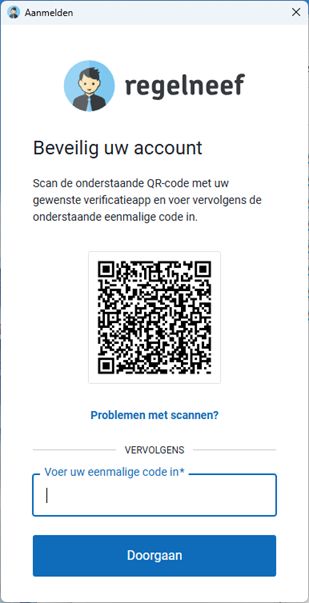
The next time a user logs in, Regelneef displays a QR code for linking the account to an authenticator app, such as Google Authenticator.
Choose Add in the app and scan the QR code. The Regelneef account is added to the app. Enter its displayed security code in Regelneef to complete login.
Subsequent logins
After entering the correct email address and password, the user is immediately asked for the security code.
Resetting a user's 2FA
If a user can no longer use their authenticator link, for example after getting a new phone without a backup, they must repeat setup. An administrator can go to Maintenance → Users, open the user's details and use Reset 2FA.
Hide GDPR-sensitive employee data in the app
When enabled, the mobile Regelneef app hides details such as BSN, bank account number, passport number and driving licence number.
If you disable this setting, these details are still shown only to users whose user level permits 'App - Also show GDPR-sensitive data'.