Automatically translated from Dutch. Some wording may be inaccurate.
A Regelneef Word layout is a standard Word document containing merge codes for the fields Regelneef fills during merging.
Format
Usually you start with an existing Word document whose contents and formatting are already suitable, then add merge codes. Both .docx and .doc are supported.
Obtaining merge codes
The easiest way to insert codes is to copy them individually from the Regelneef merge-code file and paste them into your layout document.
To obtain the available codes, go to the part of Regelneef where the document will be added as a layout. This matters because available codes differ by document type.
 | Example |
•If your document only needs general employee details, open Employee → General documents layouts from the employee overview by clicking Documents.
•If your document concerns an employee's placement, for example its start date, client name and rate, open Employee placement documents from the employee planlist using Documents.
•If your document concerns an employee's car use, open Employee car documents from the car planlist using Documents.
•The same principle applies to clients, requests, CVs and other document types.
In the appropriate layouts screen, open the merge-code file by enabling Show maintenance options and clicking Merge codes.
Copying and pasting codes
The Regelneef merge-code file is a Word document with two columns. The left column contains the name and the right column the code itself. Select and copy the code from the right column, then paste it into your layout file.
Preserving formatting when pasting codes
Copying a code also copies its formatting, such as its font. After pasting, click Word's smart tag for Paste Options and select Match Destination Formatting. The pasted code then uses the layout document's formatting.
Once all required codes are in place, add the layout to Regelneef using New. See Maintaining layouts for details.
Table merge codes: TableStart and TableEnd
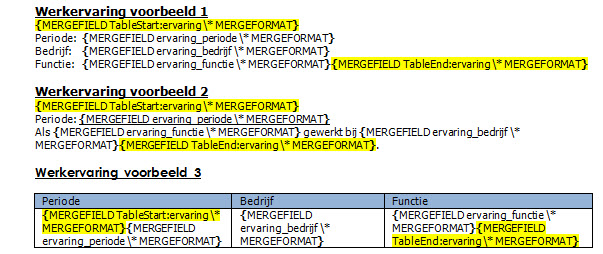
After the ordinary codes, the merge-code file often contains table codes. These tables may have multiple records, so they are listed separately. An example for employees is the Experience table. If an employee has five experience records, the merge repeats that information five times. You only insert the codes once in the layout, but they must be enclosed between a TableStart and a TableEnd code. Regelneef repeats everything between these codes for each table row. If the table is empty, nothing between the codes appears.
TableStart and TableEnd are also in the merge-code file, but are usually not immediately visible. Press Alt+F9 in Word to show more detail in merge fields, including TableStart and TableEnd. Copy them into the target document in the usual way.
Examples of TableStart and TableEnd
The example below lists an employee's work experience in three different ways. For clarity, the TableStart and TableEnd codes are highlighted in yellow:
The layout above was merged with an employee who has three work-experience records. The result is shown below. The start and end codes are no longer visible after merging.
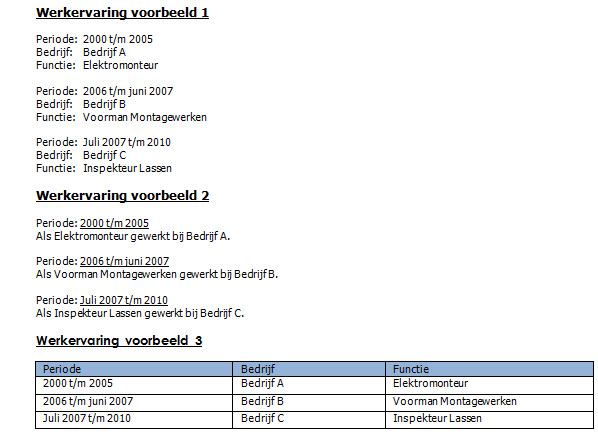
Example 3 shows how to display data in a Word table. Each Regelneef record becomes a separate Word table row. Create only one row for the codes in the layout. Here, the header row is outside the codes, so it is always shown and is not repeated. The following rules apply:
•TableStart must be the first code in the leftmost column
•TableEnd must be the last code in the rightmost column
•TableStart and TableEnd must be in the same table row
Tip
You can import a Regelneef-generated merge-code file as a layout itself. Run it to see how every code is replaced by data.