Regelneef 21.1
Document links
The Regelneef archive system has been enhanced with document links. This makes it easier to access and add different types of documents. It also makes it much clearer whether all the required documents are present in the system.
Where document links are available, this is indicated by a button displaying a number, in the same colour as the archive icon. The number indicates the number of linked documents.
Clicking the button immediately displays the linked documents on the screen below; in this example, the ID documents of an employee.
It is also possible to add new documents directly as ID documents, using the usual methods. A document can be unlinked as an ID document by deselecting the tick box on the left-hand side.
It is also possible to open all documents relating to (in this example) the employee using the button below. The tick boxes on the left allow you to link or unlink documents. Linked documents are displayed in bold.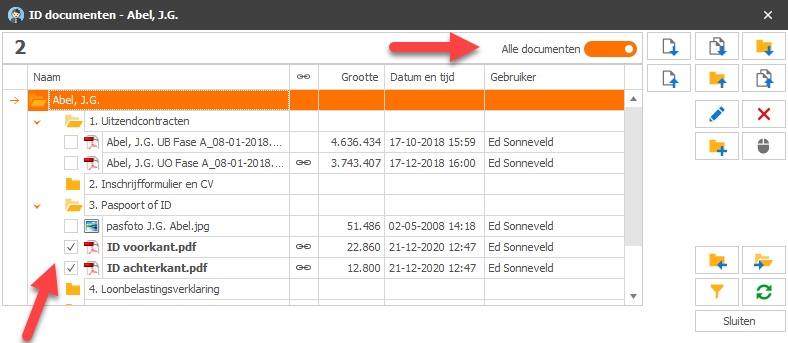
In the standard Regelneef archive, a new column is visible that shows whether a document is linked. When you hover the mouse over the icon, Regelneef displays the type of link.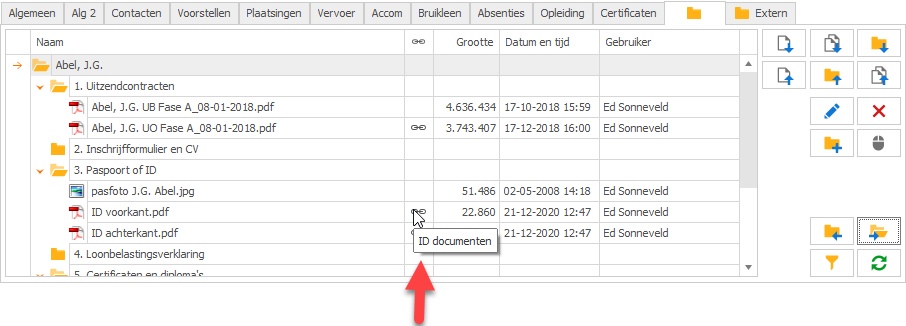
It is not always necessary to open a detail screen to see whether a particular type of document is present. This is because the numbers are also available as a column. Below are the new columns available in the Employee overview: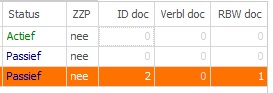
The document links are a specific addition to the Regelneef archive in the cloud version and are therefore not available if your Regelneef system uses an external archive.
The document links initially offered in this version are:
Employee: ID documents, Residence documents, Driving licence documents, Certificate documents (separately for each linked certificate)
Subcontractor: VAT documents, Chamber of Commerce documents
All changes made by a user
Under Maintenance->Users, a ‘Changes’ button has been added, allowing you to view all logged changes made by the relevant user.
Expansion of logged tables
Changes to the following tables are now also logged:
Users
User levels
Miscellaneous
Permissions for amending an employee’s absences can now be set separately via a new permission rule in the user levels.
Invoice numbers from a weeksheet can also be used in hired-in staff man-day statements.
Changes to wage components for a placement are now correctly logged in the change log.
The client’s commercial manager has been made available in various planlists