Regelneef 21.3
Two-factor authentication (2FA)
It is, of course, of the utmost importance that your data does not fall into the wrong hands. That is why it is now possible to add a second layer of security by enabling two-factor authentication (2FA) in your database. This ensures that, after successfully logging in with a username and password, a second step is required to access the data. The user must enter an additional security code that is specific to that user at that moment. The latest versions of the Regelneef app are also compatible with this feature.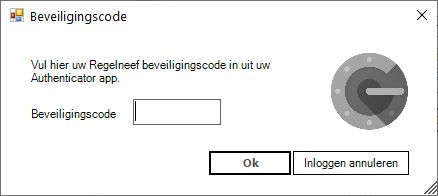
Enabling 2FA centrally
It is very easy to enable this for all users in one go. To do this, go to Maintenance->Settings->Security, and tick this new option.
First-time login: linking to an authenticator app
When a user subsequently logs in to Regelneef on the desktop for the first time, an ‘Authenticator setup’ screen will appear with instructions enabling the user to link their Regelneef account to an authenticator app, such as Google Authenticator, via a QR code.
By selecting ‘Add’ in the app, the QR code displayed by Regelneef can be scanned using the app, after which a Regelneef entry is added to the authenticator app. This entry contains the name of the database, the user, and a security code. The security code can now be entered in Regelneef, after which the login process is complete. Regelneef then recognises that the user has linked an authenticator app and will no longer display the setup screen in future.
Subsequent logins
On subsequent logins, once the correct username and password have been entered, you will be asked for the security code straight away. You will therefore always need your own authenticator app to retrieve this security code.
Resetting 2FA for a user
If a user can no longer use their previous link to the authenticator app (for example, if they have a new phone and no backup was made), they must be able to complete the authenticator setup again. This can be done by going to Maintenance->Users as an administrator and clicking the ‘Reset 2FA’ button on the relevant user’s details screen.
Database name
From now on, the name of the database is displayed in the title bar of Regelneef – next to the version number. This name refers to the entire database, so it is one level higher than any individual affiliates. Under Maintenance->Settings, on the General tab, this name can be changed if required.
Documents for placements
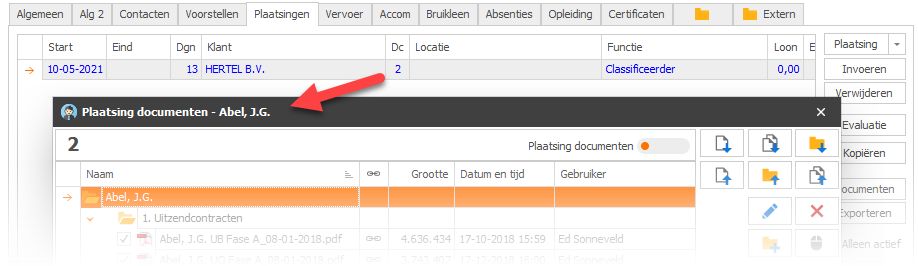
Document links from the employee’s profile are now also available for placements. This feature of the Regelneef archive in the cloud version allows documents to be linked to a specific placement, whilst they are actually stored in the archive under the employee’s profile.
In the details screen for a placement, a button is visible that immediately displays the number of documents. Clicking on it opens the document links window.
In the ‘Placements’ tab for an employee, a column is displayed showing the number of documents for each placement. Double-clicking this number opens the document links window straight away.
In the employee planlist, a new column is available showing the number of documents for each placement.
Miscellaneous
Importing wages and rates for placements
It is now possible to assign a customised hourly wage and rate to multiple placements from an Excel list. This saves a great deal of time compared to adjusting them manually for each placement.
The new hourly wage is automatically applied to any percentages for overtime and surcharge hours. The rates for each individual percentage can be provided via the Excel file.
Help system buttons
On certain screens, further information can be found in the help function. Following last year’s switch to a tabbed interface, the help button is no longer always immediately visible. Therefore, additional buttons have been added in various places to allow users to access the help function.
SMS sender: checking the use of a name
Regelneef’s SMS module allows you to enter the sender’s details. By default, this is intended for entering a mobile number, but it is also possible to use a name. In practice, however, it has been found that using a name can result in less reliable delivery, particularly to countries in Eastern Europe.
For this reason, Regelneef will now display a warning button whenever a name is used when sending an SMS. Delivery is most reliable when a mobile number is specified as the sender.
Saving a customised sender
When the sender is changed, Regelneef will now ask, upon closing the screen, whether the modified sender should be used as the default from now on. This setting is specific to each user.
Miscellaneous
Regelneef archive: on the ‘Certificates’ tab for an employee, you can now double-click the column showing the number of documents. This will immediately open the document links window.
In the weeksheet, the total turnover is now calculated based on the rounded subtotals. This means the total turnover will always equal the visible subtotals, and no rounding discrepancies can occur.
On an employee’s ‘Accommodation’ tab, the postcode is now also displayed as a column.