Regelneef 23.3
Eight-week day planning overview
The Employee planlist has been expanded to include an additional tab: Day planning overview.
This provides a visual representation of the eight-week (daily) schedule for all placements during the selected period.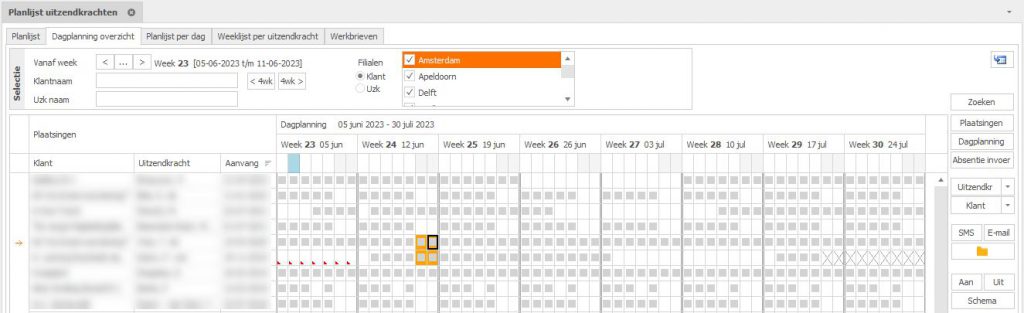
Day planning
To clarify: the day planning is Regelneef’s system for enabling or disabling individual days within a placement period. By default, all days in a placement period are enabled, but this can be adjusted on a day-by-day basis if required.
The day planning also affects the weeksheets. When days are deactivated via the day planning (or via a placement schedule), no hours can be entered for those days in the weeksheets.
Display
When a day is scheduled, this is indicated by a grey block. This is similar to the ‘P’ used elsewhere in the system.
Absences are indicated by a red corner.
Absences are recorded for the employee themselves (Absences tab) and are, in principle, separate from the day planning.
Hovering the mouse cursor over each day cell displays information about the date, employee, client and any absence.
The total number of employees scheduled is shown at the bottom of each day. For example, apply a filter to the client name to view the scheduled staffing for that client over an eight-week period.
Editing
The day planning can be easily turned on or off for each day by double-clicking on it
You can also select multiple day cells. This can be a single block, or individual cells, selected by holding down the Ctrl key whilst clicking or dragging with the mouse.
Multiple day cells can be turned on or off in one go using the buttons of the same name on the right-hand side.
The underlying placements can be viewed and edited using a button.
An absence can also be entered, for several people at once if required.
Placement schedule
It is now also possible to set a placement schedule for each placement, in cases where work follows a fixed, recurring pattern of a number of weeks on / a number of weeks off.
This setting ensures that the day planning for the entire duration of the placement is automatically filled in based on the schedule.To apply a placement schedule:
Select one or more placements on the date on which they are due to start a schedule.
Click the ‘Schedule’ button, select one of the schedules from the list and click ‘Apply now’.
The updated day planning will then be immediately visible for the relevant placements.
It remains possible to subsequently manually add or remove days from these placements, even if this deviates from the schedule. Such changes will only be overwritten when a new schedule is assigned.
The placement schedule and the placement schedule start date can be displayed as columns via the list definitions.
A placement schedule ends when a placement ends. If an employee is assigned a new placement, a new placement schedule must be entered.
Importing multiple disciplines
When importing employees, it is now possible to import multiple disciplines per person, rather than just one.
In the Excel and CSV imports, up to five disciplines can be specified: in addition to the ‘Functie’ column, the columns ‘Functie2’ to ‘Functie5’ are also recognised.
The XML import has also been adapted for this purpose. This format now supports an unlimited number of disciplines.
From now on, the Regelneef XML export will also export all disciplines for an employee.
Selecting the subcontractor’s purchase rate for a placement
If an employee is supplied by a third party (an employee hired from a third party or a self-employed person) for a placement, it is now also possible to select the purchase rate from the specified rate list of the relevant subcontractor.
A button is displayed to the right of the ‘Purchase rate’ field for this purpose. A selection screen will then appear showing the rates recorded for the subcontractor, with the employee’s name and discipline also specified for clarity.
When editing multiple placements at the same time, the ‘Per row’ option is available for this field. If this is ticked, the amounts in the relevant column can be entered on a per-row basis. Here too – when the placement involves a subcontractor – a drop-down button is now displayed.
Miscellaneous
Alerts now include a ‘52 weeks worked’ type. This only applies to an ABU collective agreement and, of course, only when the hours worked are recorded in Regelneef via weeksheets.
Date and calendar-related elements were not always translated in the English version. This has now been rectified.