Regelneef 24.3
New menu for phone numbers, with a WhatsApp option
The telephone number fields on various screens now feature a button that opens up a number of options: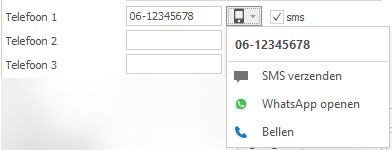
Send SMS
Opens the SMS screen in Regelneef. This is only available when the SMS module is in use.Open WhatsApp
Opens a chat in the Windows WhatsApp application, provided it is installed on the Windows system and the number is recognised by WhatsApp.Call
Initiates a call if VOIP software is running on the Windows system. This option is only available if the relevant setting is enabled in Maintenance Settings, under the General tab.
Import Inbox API
It is now possible to send files for importing employees via an API to Regelneef. These files can then be opened in the import screen to check and process them.
One application of this is, for example, being able to import the details of someone who has registered on the website.
Actions
Regelneef’s action system features many new capabilities and improvements. Its purpose is to enable you to quickly and easily record scheduled action items with notes for yourself or other users. The basic principle is that users should also be able to view each other’s actions easily. Changes to actions made by one user are updated in real time for all other users. In lists and detail screens, you can now view the number of outstanding actions per section.
With the introduction of the new action category, it is now also well-suited for centralised action lists for different specialisms within your organisation.
New action buttons for employees, clients, accommodations, etc.
Two new buttons are now visible on the detail screens for employees, clients, cars, accommodations, requests and intermediaries:
These have the following functions:
Create a new action
The left-hand button allows you to create a new action immediately.
Until now, on these screens, an action could only be linked via a contact memo. From now on, it is therefore much quicker to create a new linked action.Overview of the number of outstanding actions
The number displayed on the right-hand button shows at a glance whether there are any outstanding actions. This figure represents the total number of actions for the relevant section, across all action recipients combined.Open the action-list popup
Clicking the button on the right opens a pop-up screen displaying the action list for that specific section (for example, the employee).
By default, all actions are displayed. Click ‘Action recipient’ to filter the list to show only your own actions.
By unchecking ‘Only outstanding actions’, the action history becomes visible, including actions that have already been completed.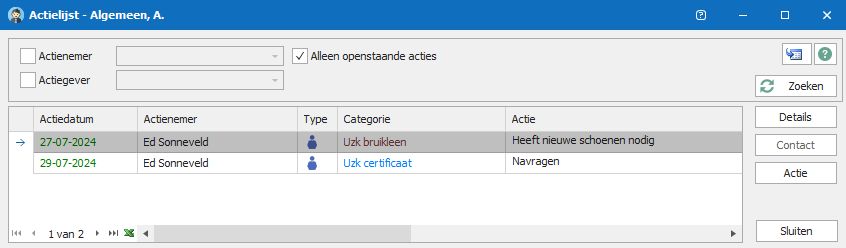
New action properties

Type and Details button
In an action’s detail screen, an icon is displayed indicating the type (the component to which it is linked, for example an employee).A ‘Details’ button allows you to open the relevant linked details screen directly from the action.
Category
The category ensures that actions are clearly grouped by subject, which is also useful when processing multiple actions of a particular category.
For example: when creating an action for an employee, there is a drop-down list of categories for transport, accommodation, certificates, ID, etc.
For an action relating to a client, or a general action, there are different categories.
The category is also displayed on the New Actions screen and as a column in the action list. This column makes it easy to sort or filter by category.
The available categories can be expanded or customised in your system as required.
This can be done via Maintenance->Tables->Action categories.
You can also set a colour for each category. This colour will then be visible in the ‘New actions’ screen and the actions list, making it even easier to recognise specific groups of actions. The default colour is black.
Displaying the number of actions in lists
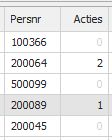
The number of outstanding actions for, for example, an employee can also be displayed as a column via the list definitions. The number shown in the column is the same as that displayed on the button in the relevant detail screen.
In many (planning) lists, new columns have been added showing the numbers associated with the various components. For example, the accommodation planlist has separate columns for employee actions and accommodation actions.
Real-time updates
The numbers displayed on the buttons and in the columns, as well as any outstanding action lists, are refreshed immediately whenever a change is made by you or another Regelneef user.
So even if a screen remains open for a while, you can be sure that the action information displayed has not become out of date in the meantime.
Entering an action for multiple employees at once

An option has been added to various screens to enter an action in one go for every selected employee in the list. This option is called ‘Enter action for employee(s)’ and can be found in the submenus on the ‘Employee overview’, ‘Employee planlist’ and ‘Employee planboard’ screens.
A small button showing the number of employees will then appear on the input screen. Clicking on it displays the names.
Actions – miscellaneous
After entering an action, a brief notification is now displayed for confirmation, showing the number of actions created.
The icons in the action system have been revised and improved.
It is now also possible to apply a filter in an action list based on who sent the action.
Work is currently underway to integrate actions into the Regelneef app.
Improvements to contact / action screens:
The list of actions below the contact now displays the full text of each action straight away, rather than just one line.
The lower section containing actions can now be made larger or smaller using a splitter bar by dragging the bar.
Regelneef app
The Absence planlist can now be viewed via the ‘Absences’ button in the main menu.
Damage details are now also displayed for vehicles. Any linked documents can be viewed or supplemented with new uploads.

Screen and Excel list for subcontractors
The overview screen for subcontractors can now also be customised or expanded as required via the list definitions. An Excel button has also been added for Excel lists, again via these list definitions.
Weeksheet showing the name of the subcontractor, and checks on Chamber of Commerce and VAT numbers
The weeksheet now also displays the subcontractor (if applicable) for the relevant placement. In addition, you can check the relevant subcontractor’s Chamber of Commerce number and VAT number on the spot, provided these have been entered.
Search/refresh button
The Search button, which appears on many screens, now features a refresh icon: 
This makes the button easier to spot and further emphasises that it can also be used to refresh the screen’s content with the very latest data.
Expansion of the Intermediary table
New fields:
Chamber of Commerce number (with validation), copy of registration, Chamber of Commerce documents, date of issue
VAT number (with validation), VAT certificate, VAT documents
Insured
Creditor number, G-account, G-account percentage
Contract start and end dates
The table of intermediaries can now also be opened directly from the toolbar

Miscellaneous
In the planlist, a new ‘Account Manager’ column is now available on the ‘Weekly List’ tab for each employee.
For some document types, the merge code for ‘Properties’ was still missing. This has been resolved.
When copying or transferring a placement, the following checkboxes and dates are no longer carried over:
- Order confirmation signed
- Agreement signed
- Initial check completed
This is because it is not necessarily the case that these will also apply to the ‘new’ placement.The selection of employees based on postcode range has been optimised internally and will therefore run more quickly.