TIP: Working with date ranges
In various places within Regelneef, data can be retrieved by period. Two different tools are provided for entering the desired period and navigating between periods: the period selection or the week selection.
Period selection
It is often possible to set any period. For example, when the Employee planlist is opened, a period of one day (the current day) is displayed by default.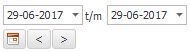
If a different period needs to be displayed, the start and end dates can, of course, be entered separately. This can be done manually or using the drop-down calendars next to the date fields.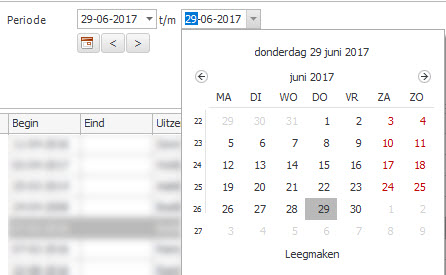
There is an even quicker way: clicking the calendar button opens a ‘Select period’ screen. In the example below, a two-week period is selected by clicking on Monday 5 June and then dragging to Sunday 18 June.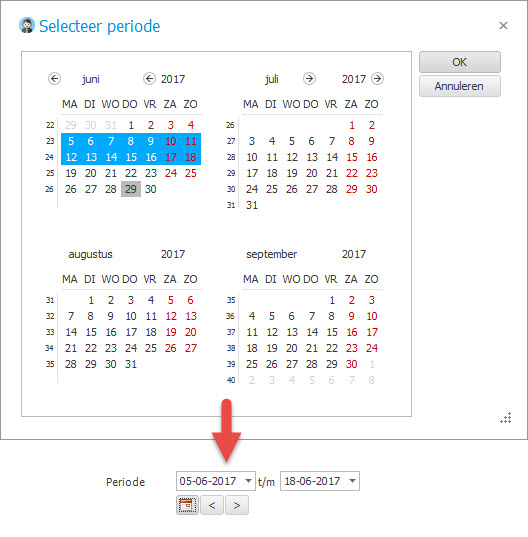
Instead of dragging, you can also select the start date and then select the end date whilst holding down the Ctrl key.
Navigation
The two navigation buttons allow you to move quickly forwards or backwards, taking into account the period selected in the two date fields.
The navigator handles months intelligently. For example, if the whole month of June (1 June – 30 June) is selected, the next period will also be the whole month: 1 July – 31 July. This also works when navigating across multiple months or years.
Week selection
If you are always selecting a week, the following options are available:
You can use the arrows to navigate to earlier or later weeks.
The middle button displays a calendar. When a date is selected there, the corresponding week will be selected.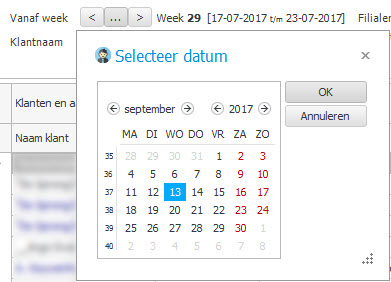
The result: