Automatically translated from Dutch. Some wording may be inaccurate.
Regelneef uses list definitions to configure columns in
•Excel lists
A list definition determines:
•Which columns are visible and their order
•Column names and widths
•How data is sorted
Screen lists
If a screen supports list definitions, this button is available:

Hover over it to see the current screen-list name:
Click it to open the menu:
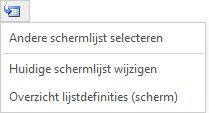
Select another screen list
Shows the available screen lists for the current screen. Your choice takes effect immediately and is remembered for the next time you open this screen.
This option is disabled if there are no other screen lists.
Edit current screen list
Opens the definition of the current list. Saving updates the displayed list immediately.
If you want a list specifically for yourself, create a separate definition or copy an existing one and give it a clear name.
List definitions overview (screen)
Shows screen-list definitions for the current part of the application.
From here, edit, create, delete or copy screen definitions.
Excel lists
The following button appears when data can be exported to Excel.

The left part opens a screen to select a list and output options.
The small button opens a menu:
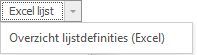
List definitions overview (Excel)
Shows Excel definitions for the current part of the application.
From here, edit, create, delete or copy Excel definitions.
List definition details
Configure the list's properties here.
Use a descriptive name so everyone understands its purpose.
Screen-list definitions and other users
At the bottom of screen-list details, usage information is shown. If there is only one definition, changes automatically affect other users. If several exist, you can see which users use this definition and will receive your changes.
Columns
Available columns appear on the left, and used columns on the right.
Available
Available columns depend on the list type and may differ between screen and Excel lists.
Add a column by moving it to the right with >.
To search the available columns quickly, type in the field below the heading. The list is filtered to matching column names with each keystroke.
Used
The displayed order determines the order of columns in the actual list. New columns are added at the bottom. Reorder them by dragging rows vertically.
Each column receives a default title and width. Change them by double-clicking the row or using Edit.
To remove a used column, select it and click <. It returns to the available columns.
Sorting
This tab determines the order of records. Every list definition requires at least one sorting column, with ascending or descending order specified.
You can add several sorting levels. The first row is the primary sort. Drag rows vertically to reorder them.
Grouping (Excel lists only)
For Excel definitions, each sorting column can also define a group break. This separates groups more clearly in the output. Options are:
•Insert white space at a new group
•Insert a page break at a new group
•Insert blank rows at a new group (configurable number)
•Insert blank rows and a page break at a new group (configurable number)
Page settings (Excel lists only)
This tab appears only for Excel definitions. Options include:
•Print settings:
oMargins
oOrientation (portrait or landscape)
oPrint gridlines
•Font and size
•Row height (fixed or automatic)