Automatically translated from Dutch. Some wording may be inaccurate.
21.4 20 September 2021 |
Password management improvements
Users can now be required to change their password. After logging in to Regelneef or the app, they must set a new password before continuing.
Users must now choose a new password after login in these situations:
•Their first login to a new account;
•Their first login after an administrator resets their password;
•An administrator has chosen to require a password change for all users.
The last option is new and is available under
Maintenance → Settings, Security tab: Force password change for all users.
The user details window under Maintenance → Users shows a message if the user will need to change their password.
Bank documents
Regelneef archive document links can now also be used for employee bank documents. A corresponding column is available in the employee overview.

New hours and turnover statistics
Four options have been added to the drop-down list under File → Statistics:
•Billable hours per client, per week
•Invoiced hours per client, per week
•Calculated turnover per client, per week
•Invoiced turnover per client, per week
Alerts for selected absences
Alerts can now notify you when particular absences are about to start or end. Configure this for each absence type as needed.
Go to Employees → Tables → Absence types and select Show absences in Alerts for the relevant type.
Under Settings → Alerts → Periods, configure automatic notifications and the number of days to look ahead and back for the new Absence start and Absence end types.
Employee planning days in a week
The employee planlist can now show how many days an employee is active in the selected week. This is the number of distinct days with a P in day planning across all of that employee's placements in the week. The result is always between 0 and 7.
Similar weekly information was already available for accommodation days. The employee planlist definition now offers these weekly counts:
•Employee accommodation days this week
•Employee placement days this week
Employee planlist, Weeksheets tab: double-click
Double-clicking a row now always opens the weeksheet.
More column information from list definitions
Many screen lists use a list definition with a fuller column name or description than the displayed heading, especially for narrow columns. This description now appears automatically when you hover over a column heading.

Export file to clipboard
The employee export window now has an option to copy the file to the clipboard as well.
Exports are often used to transfer data to Freepack, for example. If Freepack runs remotely, Regelneef cannot write there directly. Copying the file to the clipboard makes the transfer easier.
Other changes
Searching evaluations by date range did not always work correctly. This has been fixed.
21.3 25 May 2021 |
Two-factor authentication (2FA)
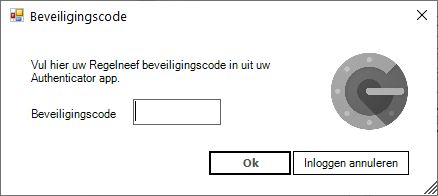
Protecting your data from unauthorised access is essential. You can now add a second layer of security by enabling two-factor authentication (2FA) for your database. After successfully entering a username and password, the user must enter an additional security code specific to that user and moment. Recent versions of the Regelneef app also support this.
Enable 2FA centrally
To enable it for all users at once, go to Maintenance → Settings → Security and select the new option.
First login: link an authenticator app
The next time a user logs in to Regelneef on the desktop, the Authenticator setup window provides instructions and a QR code to link the account to an authenticator app, such as Google Authenticator.
Choose Add in the authenticator app and scan the QR code shown by Regelneef. The app adds a Regelneef entry showing the database, user and a security code. Enter the code in Regelneef to finish logging in. Regelneef then knows that an authenticator app is linked and will not show setup again.
Subsequent logins
After entering a correct username and password, the user is asked directly for the security code. They therefore always need their own authenticator app to obtain it.
Reset a user's 2FA
If a user can no longer use their linked authenticator, for example after replacing a phone without a backup, they must repeat Authenticator setup. An administrator can enable this by going to Maintenance → Users, opening that user's details and clicking Reset 2FA.
Cloud only
This 2FA system applies only to the cloud version of Regelneef.
Database name
The database name now appears next to the version number in the Regelneef title bar.
This name applies to the whole database, above any separate affiliates.
You can change it on the General tab under Maintenance → Settings.
Placement documents
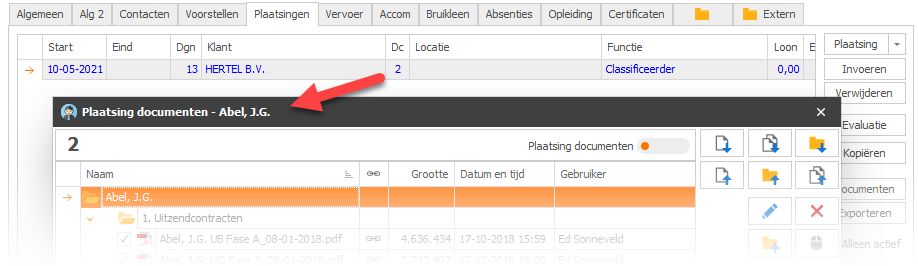
Employee document links are now also available for placements. This Regelneef archive feature in the cloud version links documents to a particular placement while storing them in the employee's archive.
•A button in placement details shows the document count. Click it to open the document links window.
•The employee's Placements tab has a column showing the document count for each placement.
Double-click the number to open the document links window directly.
•A document count column is also available in the employee planlist.
Other changes
Import placement wages and rates
You can now update hourly wages and rates for multiple placements using an Excel list, saving time compared with editing each placement manually.
The new hourly wage is automatically applied to overtime and allowance percentages. Rates for individual percentages can be supplied in the Excel file.
See here for more information.
Help buttons
Some windows provide additional information through Help. Since the switch to tabbed windows last year, the Help button was not always directly visible. Additional Help buttons have therefore been added where needed.
SMS sender: check when using a name
The SMS module lets you enter a sender, normally a mobile number, although a name is also possible. In practice, using a name can make delivery less reliable, particularly to Eastern European countries.
Regelneef now shows a warning button when sending an SMS with a name as the sender. A mobile number provides the most reliable delivery.
Save a changed sender
If you change the sender, Regelneef now asks when closing the window whether to use it as the default. This setting is saved separately for each user.
Other changes
•Regelneef archive: on an employee's Certificates tab, double-click the document count column to open the document links window directly.
•Weeksheet turnover is now calculated from rounded subtotals. The total therefore always matches the visible subtotals, without rounding differences.
•The employee's Accommodations tab now also shows the postcode.
21.2 22 March 2021 |
Frequently requested disciplines at clients
You can now link disciplines to clients, as you already could for employees. A separate tab has been added to client details.
This lets you record, for example, disciplines requested by prospective clients without creating a request.
The client overview has a search field to select clients or prospects by one or more disciplines.
Client disciplines are updated automatically each day from requests and placements. You can disable this on the Clients tab under Maintenance → Settings. Two options also let you run the update manually.
Signature request improvements
Signature request documents are not stored indefinitely. Save signed documents in the appropriate location and delete the request. The downloads window has been extended to make this easier.
•If a request was created from an employee, selected files in the downloads window can now be saved to that employee's archive with one click.
•You can also generate an email with the files addressed to the employee. This is useful if signing used a generic email address on a tablet at the agency and the employee did not automatically receive the documents.
•You can now delete the entire signature request from the downloads window after saving the signed documents.
Archive size and emptying the recycle bin
Maintenance → Settings now shows the Regelneef archive size in files and MB.
It also shows how much is in the recycle bin. A button permanently deletes all files in the archive recycle bin.
Employee import
You can now import CSV files. The recognised field names are the same as for Excel imports.
Intermediary man-day statements
This new Employees menu option generates overviews of hours worked in a particular week per intermediary. These can, for example, form the basis for the intermediary's payment.
An example layout is available in the reports subfolder of the program folder.
Actions: completion per user
When creating an action for several users, you can require each user to mark it complete separately. Maintenance → Settings now lets you set the default for this option.
Other changes
•Regelneef archive files are once again sorted by file name by default.
•Email address is now required in the users table.
•The indication of whether a user can log in has been made clearer, including through colour.
•The user changes overview, opened using Changes in the user overview, now has a Show button. This opens the underlying record, such as the employee or client.
•An additional check is performed when sending a Word document for signature. If it cannot be converted to PDF, a problem with the file is now reported before sending.
•The Regelneef cloud updater has been improved to prevent occasional permission issues in terminal server environments.
•Selection colours in employee and client imports have been improved.
•A red cross could occasionally appear when opening the employee planlist. This has been fixed.
•Added to list definitions:
oThe employee planlist and planboard now offer the same columns. All certificates, for example, are now available in the weeksheet planlist and planboard.
oEmployee planlist: Policy number
oAccommodation planlist: Intermediary
oWeeksheet overview: several columns
oProposal planlist: several request detail columns
21.1 4 January 2021 |
Document links
The Regelneef archive now supports document links, making different document types easier to access and add. It also makes it clearer whether all required documents are present.
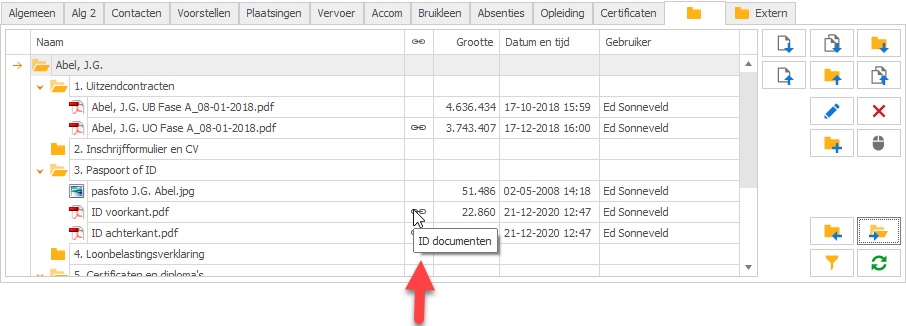
Where document links are available, a numbered button is shown in the archive icon's colour. The number is the count of linked documents.

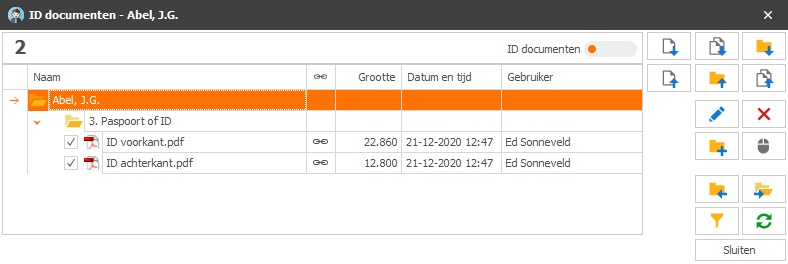
Click the button to view the linked documents directly, as shown below for an employee's ID documents.
You can also add new ID documents in the usual ways. Clear the checkbox on the left to unlink a document as an ID document.
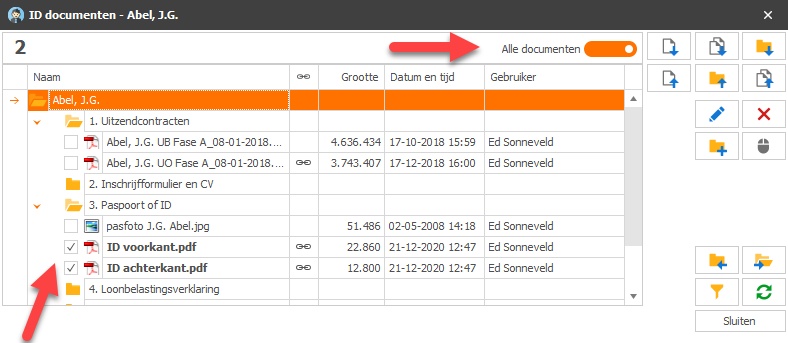
Use the button below to show all documents for the employee in this example. The checkboxes on the left link or unlink documents. Linked documents appear in bold.
A new column in the regular Regelneef archive indicates whether a document is linked. Hover over its icon to see the link type.
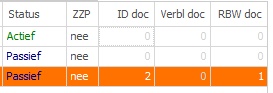
Document counts are also available as columns, so you do not always need to open details to check whether a document type is present. The new employee overview columns are shown below:
Availability
Document links are specific to the Regelneef archive in the cloud version and are not available when using an external archive.
The first document links available in this version are:
•Employee: ID documents, residence documents, driving licence documents and certificate documents, separately for each linked certificate.
•Subcontractor: VAT documents and Chamber of Commerce documents.
Other changes
All changes by a user
Under Maintenance → Users, a Changes button now retrieves all logged changes by the selected user.
Additional logged tables
Changes to these tables are now also logged:
•Users
•User levels
Other changes
•Permissions to edit employee absences can now be set separately through a new permission entry in user levels.
•Weeksheet invoice numbers are also available in hired-in staff man-day statements.
•Changes to placement wage components are now correctly recorded in the change log.
•The client's commercial manager is now available in several planlists.